Welcome to your first file! To go back to the previous file, you can always follow the path on the top left corner:
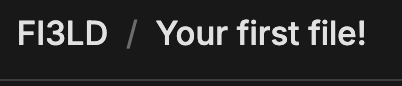
Click on “FI3LD” to go back to the previous file.
Files can have multiple files inside of them:
When you create files on FI3LD, you will be expanding the file map, an awesome way of interacting with your workspace in a visual way.
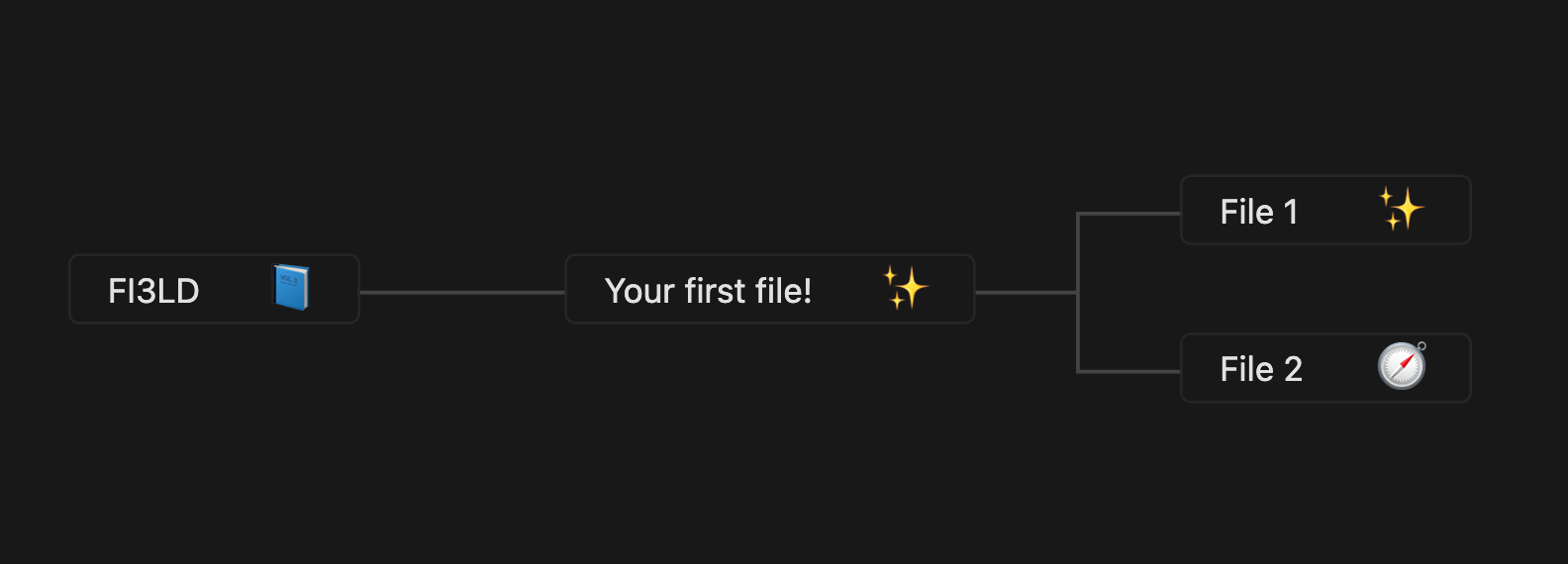
You can view a file’s map by hovering on top of the file and clicking on the map icon.

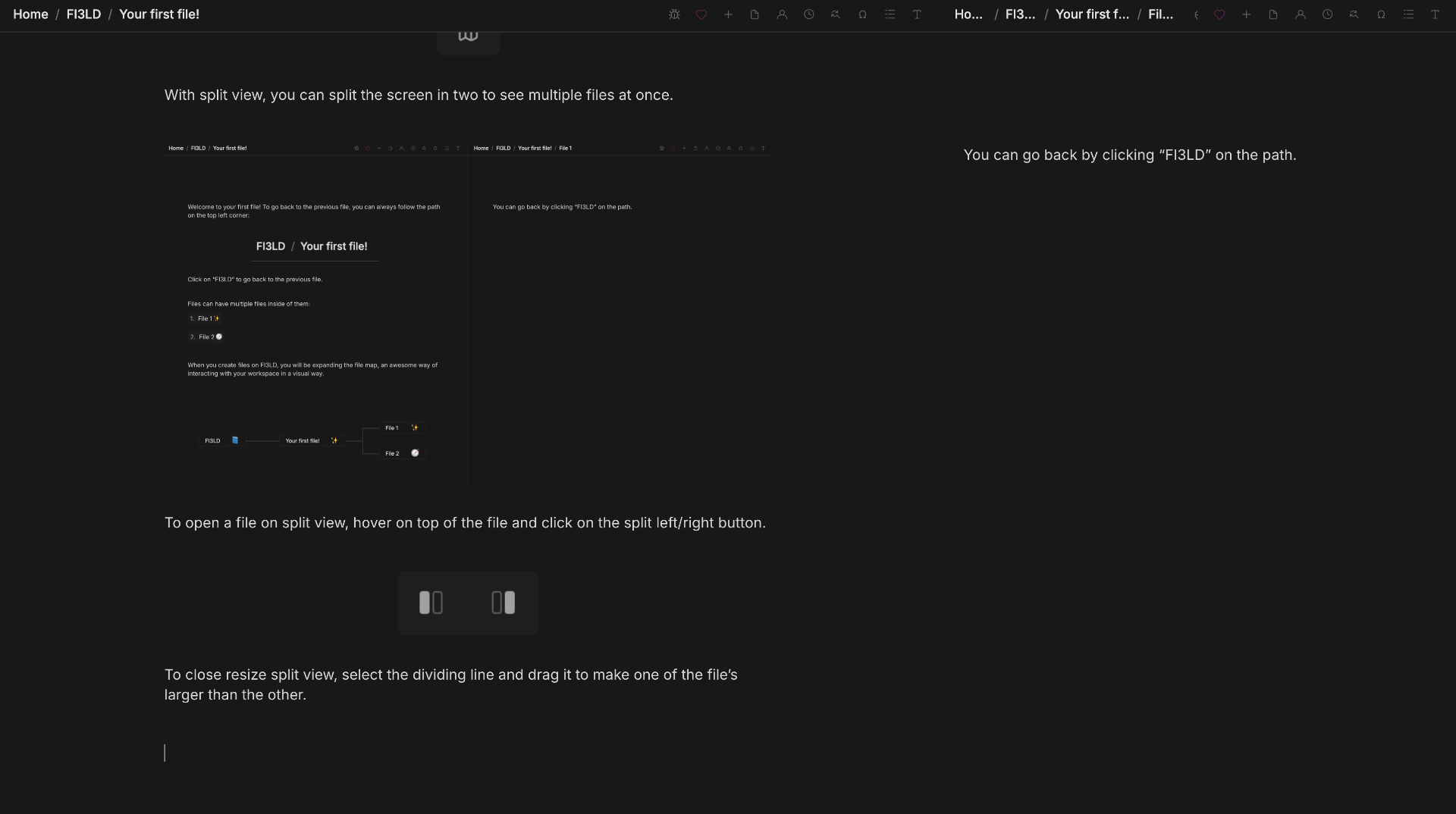
With split view, you can split the screen in two to see multiple files at once.
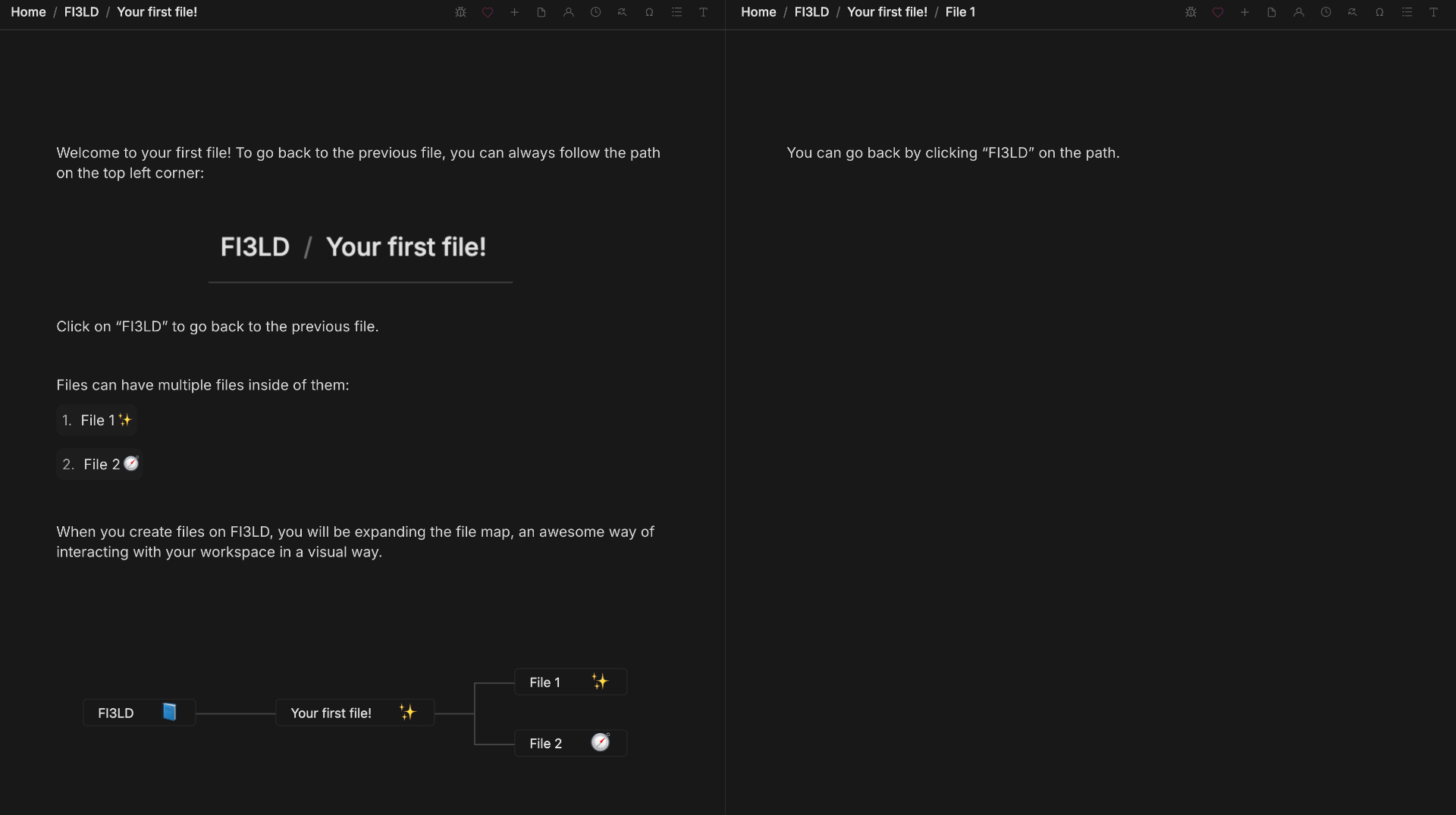
To open a file on split view, hover on top of the file and click on the split left/right button.
To resize split view, select the dividing line and drag it to make one of the file’s larger than the other.
To close split view, just drag it all the way to the border of the screen.
Split view also works with different view options, like the map.
How to get started
When you log in / create an account for the first time, you will start with the following file called “Home”:
Home is the root of your workspace. Every file you create will lead eventually to home. Home cannot be deleted, but it can be renamed and you can edit its contents.